
Shopify Payment Testing: Orders, Refunds and Status Verification
By PayEurasia Editorial Team · 14 October 2026 · 2 min read
Last updated 14 October 2026
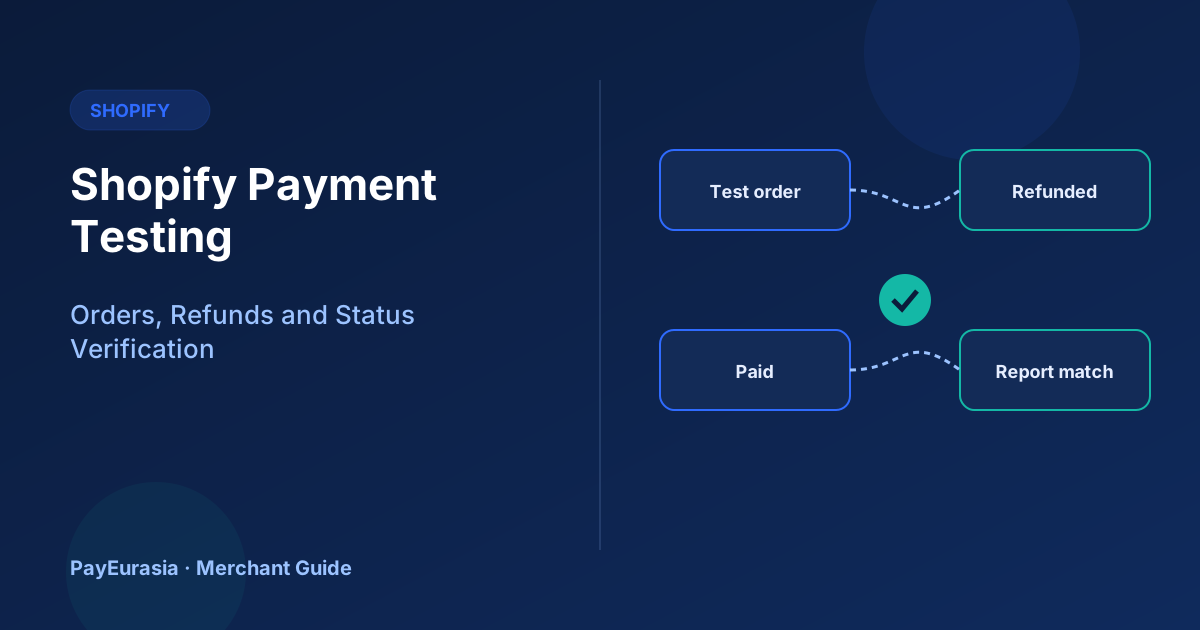
How Shopify merchants can test payment setups thoroughly, including test orders, refunds, order status accuracy and reconciliation with provider reports.
The short answer
Test a Shopify payment setup by placing orders that cover success, cancellation, closing the browser after paying, partial refund and full refund, then compare the Shopify order statuses with the provider's report. Shopify supports test modes for some payment providers; for others you may need a small real transaction. Check Shopify's guidance on testing orders for current options.
This is testing guidance and not a claim about any specific provider's Shopify integration.
Prepare
- Create a cheap test product, hidden from your storefront if possible.
- Confirm which test mode your payment provider supports.
- Prepare a sheet with columns: Shopify order number, provider reference, amount, expected status, actual status.
Test cases
- Successful payment: order shows paid, inventory reduced, confirmation email correct.
- Cancelled payment: no paid order, or order marked as abandoned checkout.
- Closed browser after paying: order still created and paid.
- Partial refund: issued from Shopify if supported; check provider report.
- Full refund: same checks.
- Different methods: repeat key tests for each method you offer.
Verify status accuracy
For each case, compare Shopify status with the provider dashboard. Differences mean something in the integration or settings needs attention.
Reconcile a test day
Export the provider report for the testing period and match each transaction to a Shopify order. This confirms your future reconciliation process will work.
Check customer-facing messages
Read the order confirmation and refund emails. They should match what actually happened.
After going live
Place one real small order with each method, refund it and confirm the same results. Monitor the first days of real orders closely.
Common findings
- Orders marked paid but the provider shows pending.
- Refunds done in the provider portal not reflected in Shopify.
- Currency or rounding differences.
Testing apps and checkout changes
Shopify stores often add apps for discounts, upsells or shipping that change checkout totals. After installing or updating such apps, repeat a short payment test to make sure the amount sent to the payment provider still matches the order total, and that refunds still calculate correctly when discounts are involved.
Document the results
Keep the test sheet with dates and versions. If problems appear later, you can compare against a known working setup.
Staff checks
Show support staff where to find payment status and the provider reference on a Shopify order, so they can answer "I paid but my order is unpaid" questions without guessing.
Frequently asked questions
Do test orders affect my reports?
They may; label them clearly and exclude them from analysis.
How often should I retest?
After changing payment providers, settings, or adding new methods.
To discuss collection options for your store, contact PayEurasia.
Talk to PayEurasia
Working in a high-risk vertical across South Asia? We can probably help.
Request integration →