
WooCommerce Payment Plugin Updates: A Safe Staging Checklist
By PayEurasia Editorial Team · 14 October 2026 · 2 min read
Last updated 14 October 2026
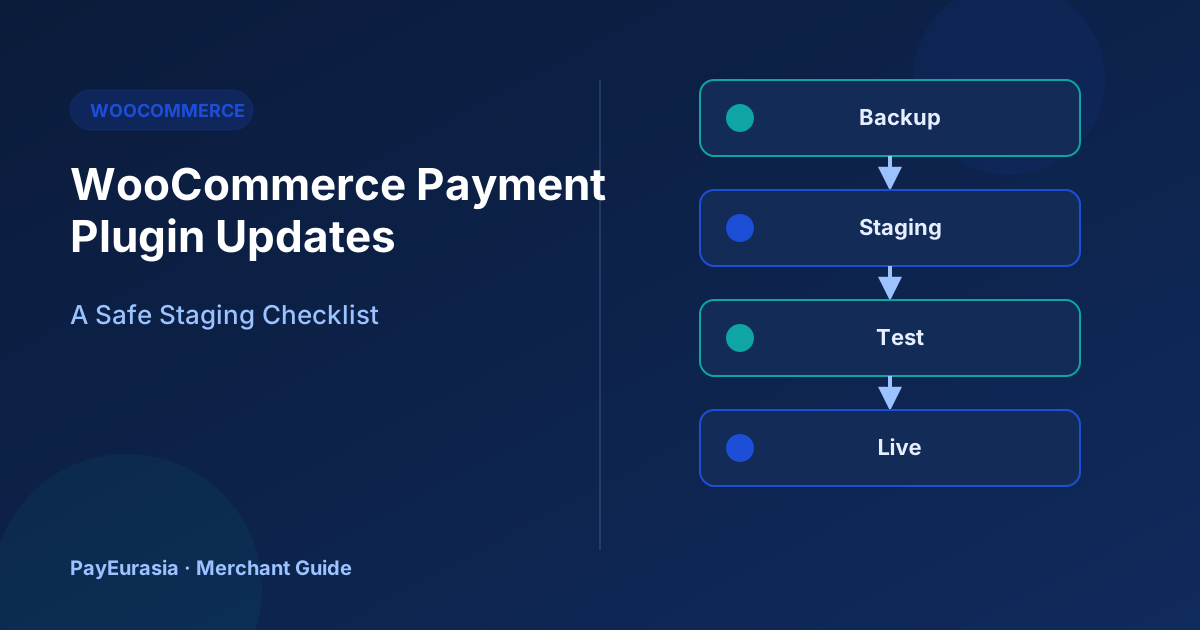
A step-by-step checklist for updating WooCommerce payment plugins safely using a staging site, backups and a short payment regression test.
The short answer
Never update a payment plugin directly on your live store during busy hours. Back up the site, apply the update on a staging copy, run a short payment test (successful payment, failed payment, refund and notification), then update live at a quiet time and place one small real order. Keep the previous plugin version available in case you need to roll back.
Why payment plugins need extra care
A broken payment plugin can stop orders silently or mark unpaid orders as paid. Updates to WordPress, WooCommerce, PHP or the plugin itself can all change behaviour.
Before updating
- Read the plugin changelog for breaking changes.
- Check compatibility with your WordPress, WooCommerce and PHP versions.
- Make a full backup of files and database.
- Note your current plugin version.
On staging
- Copy live to staging (with customer data protected or anonymised).
- Use sandbox credentials on staging; never live keys.
- Apply the update.
- Run the regression test below.
Payment regression test
- Successful payment: order status changes correctly.
- Cancelled payment: order stays pending or cancelled as expected.
- Browser closed after paying: server notification updates the order.
- Refund: partial and full refund recorded.
- Emails: correct wording for each status.
- Checkout page: no errors in the browser console.
Updating live
- Choose a low-traffic time.
- Put a short notice if checkout may be affected.
- Apply the update and place one small real order, then refund it.
- Monitor orders and payments for the next few hours.
Rollback plan
If something breaks, restore the previous plugin version or the backup. Know who will do it and how long it takes.
Keeping a log
Record each update: date, versions, who did it, test results and any issues. This helps when problems appear weeks later.
Related updates that affect payments
Payment problems sometimes follow updates to other parts of the site: caching plugins that block callbacks, security plugins that reject notifications, theme updates that change the checkout template, or hosting changes to PHP versions. Include the payment regression test after any of these updates, not only after payment plugin updates.
Monitoring after updates
For a day or two after any change, compare orders created, paid and failed with a normal day. A sudden increase in pending orders often signals that notifications are not reaching the store.
Who should do updates
Choose one person to own updates, with a backup. They should have staging access, know the rollback steps and be available for a few hours after the update.
Frequently asked questions
Should I enable automatic plugin updates?
For payment plugins, many merchants prefer manual updates after testing.
Can I test on live with a hidden product?
It is better than nothing, but a staging site avoids risk to real orders.
To discuss integration support options, contact PayEurasia.
Talk to PayEurasia
Working in a high-risk vertical across South Asia? We can probably help.
Request integration →